Monday, 27 April 2020

Utilizing the iOS Background with Xamarin

What’s Background Fetch?

First introduced in iOS 7, Background Fetch allows apps to periodically fetch data and update the UI while the app is in the background. This is a really useful feature to help keep your app’s content and UI current, so users only see the latest data when they open your app.

When your app is registered for Background Fetch, iOS will periodically wake it up and call a delegate hook. From that point, your app has 30 seconds to fetch new data, process the content, and update its UI. After 30 seconds, iOS will suspend your app.

It is also important to note that iOS has total control over when it decides to wake up your app. The exact timing is based on many factors, such as common user patterns and how often your app actually fetches new content. For example, if a person typically uses your app at 9:00 a.m., iOS will recognize this pattern and likely give your app a chance to fetch data sometime before that hour. Also, if your app only receives new data 5 percent of the time, iOS will start reducing the frequency of your fetches. That said, it is important to understand that you cannot rely on any typical or ideal timing scenarios.

Implementing Background Fetch with Xamarin

1. Enable Background Fetch.

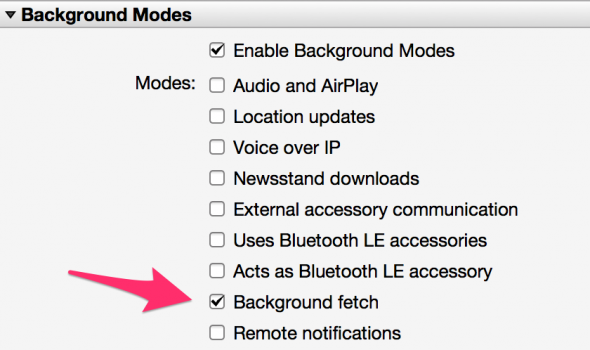
The first step is to enable the Background Fetch entitlement in your Info.plist file. It’s basically the same as you’d do with a native iOS app, except you probably won’t be editing the file in Xcode. There are two easy ways to update this file:
  • Use Xamarin Studio’s plist editor:plist
  • Just add the following key to the file:
    XML
    <key>UIBackgroundModes</key>
    <array>
      <string>fetch</string>
    </array>
    
Either way, this tells iOS you plan to use Background Fetch.

2. Specify how frequently you’d like to fetch.

Once you have enabled the Background Fetch entitlement, you need to set the desired fetch interval with the SetMinimumBackgroundFetchInterval method. You have some choices here.
  • The default interval is BackgroundFetchIntervalNever, which basically means that Background Fetch is disabled by default.
  • You can use BackgroundFetchIntervalMinimum if you want to let iOS determine when your app is woken up.
  • You can specify a desired interval, which means that iOS will wait at least the desired amount of time before waking up your app.
The most common place to put the call to SetMinimumBackgroundFetchInterval is in your FinishedLaunching delegate method, such as below:
C#
using Foundation;
using UIKit;

public override bool FinishedLaunching(UIApplication app, NSDictionary options)
{
  UIApplication.SharedApplication.SetMinimumBackgroundFetchInterval(UIApplication.BackgroundFetchIntervalMinimum);

  // More startup code here
}

3. Implement the fetch handler.

The final step is to implement the PerformFetch delegate method in your AppDelegate declaration. This is the method iOS will invoke to help your app update its content and UI. In this method, you should download any required content, determine if any new content or network errors exist, and call the provided Action<UIBackgroundFetchResult> completionHandler (the completion handler is an Action delegate that is provided as an argument in PerformFetch). This method must finish in 30 seconds, or iOS will likely terminate your app.
Below is a sample implementation of PerformFetch which downloads an image and saves it to the personal directory of the app:
C#
using Foundation;
using UIKit;
using System.IO;
using System.Net.Http;
using System.Threading.Tasks;

public partial class AppDelegate
{
  public override bool FinishedLaunching(UIApplication app, NSDictionary options)
  {
    UIApplication.SharedApplication.SetMinimumBackgroundFetchInterval(UIApplication.BackgroundFetchIntervalMinimum);

    // More startup code here
  }

  public override async void PerformFetch (UIApplication app, Action completionHandler)
  {
    // Download an image and save to disk
    var result = await FetchImage("https://www.xamarin.com/content/images/pages/branding/assets/xamagon.png");

    // Call the completion handler with the proper result
    completionHandler(result);
  }

  public async Task FetchImage (string url)
  {
    using (var httpClient = new HttpClient())
    {
      try {
        var outputFile = Path.Combine(Environment.GetFolderPath(Environment.SpecialFolder.Personal), "xamarin.png");
        var result = await httpClient.GetAsync(request);
        var contentStream = await result.Content.ReadAsStreamAsync(),

        if (contentStream.Length == 0) {
          return UIBackgroundFetchResult.NoData;
        }

        var stream = new FileStream(outputFile, FileMode.Create, FileAccess.Write))

        await contentStream.CopyToAsync(stream);

        return UIBackgroundFetchResult.NewData;
      } catch (Exception e) {
        return UIBackgroundFetchResult.Failed;
      }
    }
  }
}
So there you have it—a basic iOS app that will periodically wake up your app, fetch an image, and save it to disk. The next post in this series will explain how to use the Background Transfer Service to kick off a large download/upload (i.e., a download that might take more than 30 seconds) and update the content once it’s complete.


Tuesday, 3 March 2020

WhatsApp UI in Xamarin.Forms


Features

  • WhatsApp Chats List interface.
  • Use of Emoji.
  • Custom Floating Action Button
  • Floating Action Button for chats List interface.
  • Profile image detail on Popup Page.
  • Custom ViewCell for chats ListView.
  • WhatsApp Status List interface.
  • Custom ViewCell for Status ListView.
  • Status detail.
  • Take Photo when click on Floating Action Button.
  • Calls List Interface.
  • Custom ViewCell for Calls ListView.
  • Floating Action Button for calls List interface.

GITHUB Link

Xamarin.Forms UI Challenges - Art Auction

5 Things to be Excited About Xamarin.Forms 4.5

Let’s look at what is new in Xamarin.Forms 4.5 with several features to get excited about!

GET Details Link

Monday, 2 March 2020

How to add a Floating Action Button Without Third Party DLLs.-Xamarin Forms

A floating action button (FAB) is a circular button that triggers the primary action in your app's UI. This page shows you how to add the FAB to your layout, customize some of its appearance, and respond to button taps.

Floating action buttons provide quick access to important or common actions within an app. They have a variety of uses, including:
  • Performing a common action, such as starting a new email in a mail app.
  • Displaying additional related actions.
  • Update or transforming into other UI elements on the screen.
Floating action buttons adjust their position and visibility in response to other UI elements on the screen.


You can also set backgroud will be dim light which is available in code,You have to write below code inside ContentPage

<ContentPage.Content>
        <AbsoluteLayout  x:Name="mainLayout">
            <StackLayout Padding="40" Spacing="10" AbsoluteLayout.LayoutFlags="All"
               AbsoluteLayout.LayoutBounds="0,0,1,1">

<StackLayout Padding="40" Spacing="10" AbsoluteLayout.LayoutFlags="All" 
               AbsoluteLayout.LayoutBounds="0,0,1,1">


------------------------------------------------
------------Your XAML CODE------------------------


</StackLayout>

  <AbsoluteLayout  x:Name="MenuLayout" IsVisible="False" AbsoluteLayout.LayoutFlags="All" 
               AbsoluteLayout.LayoutBounds="0,0,1,1" BackgroundColor="#A0000000">
               <Frame
            x:Name="menuframe"
            Margin="0,0,50,110"
            IsVisible="False"
            AbsoluteLayout.LayoutBounds="1.0,1.0,-1,-1"
            AbsoluteLayout.LayoutFlags="PositionProportional"
            BorderColor="White"
            BackgroundColor="White"
            CornerRadius="10">
                <Grid>
                    <Grid.RowDefinitions>
                        <RowDefinition Height="40" />
                        <RowDefinition Height="40" />
                    </Grid.RowDefinitions>
                    <local:MenuView
                    x:Name="FloatMenuItem1"
                    Grid.Row="0"
                    BackgroundColor="Transparent"
                    IsVisible="False"
                    MenuClicked="MenuClicked"
                    MenuText="Add Line Item To All Options"
                    MenuTextColor="Black"
                    MenuTextFontAttributes="None" />
                    <local:MenuView
                    x:Name="FloatMenuItem2"
                    Grid.Row="1"
                    BackgroundColor="Transparent"
                    IsVisible="False"
                    MenuClicked="MenuClicked"
                    MenuText="Add New Option"
                    MenuTextColor="Black"
                    MenuTextFontAttributes="None" />
                </Grid>
            </Frame>
           
        </AbsoluteLayout>
         <Image
            x:Name="imgRadialMenu"
            Margin="10,10,50,50"
            AbsoluteLayout.LayoutBounds="1,1,-1,-1"
            AbsoluteLayout.LayoutFlags="PositionProportional"
            HeightRequest="50"
            Source="plus.png"
            WidthRequest="50">
                <Image.GestureRecognizers>
                    <TapGestureRecognizer Tapped="FloatButton_Click" />
                </Image.GestureRecognizers>
            </Image>
         </AbsoluteLayout>
    </ContentPage.Content>

Code Behind File :

In Constructor :
----------------------------------------------------------------------------------------------------------------

var tapGestureRecognizer = new TapGestureRecognizer();
            tapGestureRecognizer.Tapped += (s, e) =>
            {
                DisAppearFabMenu();

            };
            mainLayout.GestureRecognizers.Add(tapGestureRecognizer);

---------------------------------------------------------------------------------------------------------------- 
Please Note : No need to set IsVisible Properties for  every FloatMenuItem1 if we hidden FRAME.

    private async void FloatButton_Click(object sender, EventArgs e)
        {
            var source = imgRadialMenu.Source as FileImageSource;

            if (source.File == "plus.png")
            {
                await Task.Delay(10);
                imgRadialMenu.Source = "close.png"; //Icons will be required
                imgRadialMenu.IsEnabled = false;
                FloatMenuItem1.IsVisible = false;
                FloatMenuItem2.IsVisible = false;
                FloatMenuItem2.IsVisible = true;
                menuframe.IsVisible = true;
                MenuLayout.IsVisible = true;
                FloatMenuItem1.IsVisible = true;
                imgRadialMenu.IsEnabled = true;
            }
            else
            {
                DisAppearFabMenu();
            }
        }
        private async void DisAppearFabMenu()
        {
            await imgRadialMenu.RotateTo(0, 100, Easing.Linear);
            imgRadialMenu.Source = "plus.png"; // ICONS will be required
            FloatMenuItem1.IsVisible = false;
            FloatMenuItem2.IsVisible = false;
            menuframe.IsVisible = false;
            MenuLayout.IsVisible = false;
        }

// Menu Clicked Event

        private void MenuClicked(object sender, EventArgs e)
        {
           var selectedMenu=sender as Grid ;
            if (selectedMenu.classId == FloatMenuItem1)
            {

            }

        }


Creating Custome View (MenuView)--ContentView.XAML

<?xml version="1.0" encoding="UTF-8"?>
<ContentView xmlns="http://xamarin.com/schemas/2014/forms"
             xmlns:x="http://schemas.microsoft.com/winfx/2009/xaml"
             xmlns:d="http://xamarin.com/schemas/2014/forms/design"
             xmlns:mc="http://schemas.openxmlformats.org/markup-compatibility/2006"
             mc:Ignorable="d"
             x:Class="ProjectName.CustomViews.MenuView">
    <ContentView.Content>
        <Grid x:Name="gridmenuclick"
              RowSpacing="0"
              ColumnSpacing="0"
              HorizontalOptions="Start"
              VerticalOptions="Start">
            <Grid.ColumnDefinitions>
                <ColumnDefinition Width="150"/>
            </Grid.ColumnDefinitions>
            <AbsoluteLayout Grid.Column="0">
                <Label x:Name="lblTooltipText"
                        Margin="5,0"
                        HorizontalOptions="Start"
                        BackgroundColor="Transparent"
                        VerticalTextAlignment="Center"
                        AbsoluteLayout.LayoutBounds="1,1,1,1"
                        AbsoluteLayout.LayoutFlags="All"/>
            </AbsoluteLayout>

        </Grid>
    </ContentView.Content>
</ContentView>


CODE BEHIND File :(I have created lots of bindable properties here you can use or you can create more.(i am not using all)


using System;
using System.Collections.Generic;
using System.Linq;
using System.Text;
using System.Threading.Tasks;

using Xamarin.Forms;
using Xamarin.Forms.Xaml;

namespace ProjectName.CustomViews
{
    [XamlCompilation(XamlCompilationOptions.Compile)]
    public partial class MenuView : ContentView
    {
        public event EventHandler MenuClicked;
        public MenuView()
        {
            InitializeComponent();

            var tapGestureRecognizer = new TapGestureRecognizer();
            tapGestureRecognizer.Tapped += (s, e) =>
            {
                MenuClicked?.Invoke(s, e);
            };
            gridmenuclick.GestureRecognizers.Add(tapGestureRecognizer);
        }

        protected override void OnPropertyChanged(string propertyName = null)
        {
            base.OnPropertyChanged(propertyName);

            if (propertyName == MenuTextColorProperty.PropertyName)
            {
                lblTooltipText.TextColor = MenuTextColor;
            }
           
            else if (propertyName == MenuTextProperty.PropertyName)
            {
                lblTooltipText.Text = MenuText;
                gridmenuclick.Text=MenuText;
            }
            else if (propertyName == MenuTextFontAttributesProperty.PropertyName)
            {
                lblTooltipText.FontAttributes = MenuTextFontAttributes;
            }
           
        }

        public static readonly BindableProperty MenuTextColorProperty = BindableProperty.Create(nameof(MenuTextColor), typeof(Color), typeof(MenuView), default(Color), Xamarin.Forms.BindingMode.TwoWay);
        public static readonly BindableProperty IconBackgroundColorProperty = BindableProperty.Create(nameof(IconBackgroundColor), typeof(Color), typeof(MenuView), default(Color), Xamarin.Forms.BindingMode.TwoWay);
        public static readonly BindableProperty MenuTextProperty = BindableProperty.Create(nameof(MenuText), typeof(string), typeof(MenuView), default(string), Xamarin.Forms.BindingMode.TwoWay);
        public static readonly BindableProperty MenuTooltipbackgroundImageProperty = BindableProperty.Create(nameof(MenuTooltipbackgroundImage), typeof(string), typeof(MenuView), default(string), Xamarin.Forms.BindingMode.TwoWay);
        public static readonly BindableProperty MenuIconProperty = BindableProperty.Create(nameof(MenuIcon), typeof(string), typeof(MenuView), default(string), Xamarin.Forms.BindingMode.TwoWay);
        public static readonly BindableProperty IconImageWidthRequestProperty = BindableProperty.Create(nameof(IconImageWidthRequest), typeof(double), typeof(MenuView), default(double), Xamarin.Forms.BindingMode.TwoWay);
        public static readonly BindableProperty IconImageHeightRequestProperty = BindableProperty.Create(nameof(IconImageHeightRequest), typeof(double), typeof(MenuView), default(double), Xamarin.Forms.BindingMode.TwoWay);
        public static readonly BindableProperty MenuTextFontAttributesProperty = BindableProperty.Create(nameof(MenuTextFontAttributes), typeof(FontAttributes), typeof(MenuView), default(FontAttributes), Xamarin.Forms.BindingMode.TwoWay);

        public Color MenuTextColor
        {
            get { return (Color)GetValue(MenuTextColorProperty); }
            set { SetValue(MenuTextColorProperty, value); }
        }

        public Color IconBackgroundColor
        {
            get { return (Color)GetValue(IconBackgroundColorProperty); }
            set { SetValue(IconBackgroundColorProperty, value); }
        }

        public string MenuText
        {
            get { return (string)GetValue(MenuTextProperty); }
            set { SetValue(MenuTextProperty, value); }
        }

        public string MenuTooltipbackgroundImage
        {
            get { return (string)GetValue(MenuTooltipbackgroundImageProperty); }
            set { SetValue(MenuTooltipbackgroundImageProperty, value); }
        }

        public string MenuIcon
        {
            get { return (string)GetValue(MenuIconProperty); }
            set { SetValue(MenuIconProperty, value); }
        }

        public double IconImageWidthRequest
        {
            get { return (double)GetValue(IconImageWidthRequestProperty); }
            set { SetValue(IconImageWidthRequestProperty, value); }
        }
        public double IconImageHeightRequest
        {
            get { return (double)GetValue(IconImageHeightRequestProperty); }
            set { SetValue(IconImageHeightRequestProperty, value); }
        }
        public FontAttributes MenuTextFontAttributes
        {
            get { return (FontAttributes)GetValue(MenuTextFontAttributesProperty); }
            set { SetValue(MenuTextFontAttributesProperty, value); }
        }
    }
}


Friday, 21 February 2020

Xamarin Coding Standards

There are many best practices in writing Xamarin. Here are some that we’ve canonized where I work…
  •       By convention the identifier for the ViewModel is vm
  •       Do not assign more than one page to a view model. Generally speaking: it should be one page to one view model
  •     Do not pass view modes to methods of other pages
 The only code in code-behind (e.g., foo.xaml.cs) should be
  • initialize in the constructor
  • create the view model
  • assign the datacontext to the view model
  •  call the viewmodel’s Initialize method
·         Lifecycle methods such as OnAppearing and OnDisappearing

    Why: we want to keep the code behind as sparse as possible. Unit testing requires reaching into code and that is infinitely easier with a viewmodel.

Every ViewModel should have an initialize method.

    Why: Having an initialize method keeps most of the code for the vm out of the constructor. This is recommended practice by Microsoft, and allows for async methods.

Do not put Xaml in templates in App.xaml. Put the Xaml in the Xaml file.

    Why: App.xaml quickly becomes bloated and hard to work with. Having the Xaml in the Xaml file is natural and helps create the troika we want: foo.xaml, foo.xaml.cs and fooViewModel.cs.

Create viewmodel name by appending “viewmodel” to the xaml name

  • LigthController.xaml
  • LightController.xaml.cs
  • LightControllerViewModel.cs

    Why: It is far easier to find the file you want if we follow a convention.

Avoid Xaml file names ending in “view”

  • LightControllerView.xaml
  • LightControllerView.xaml.cs
  • LightControllerViewViewModel.cs

    Why: Adding view to a view file is redundant and it makes reading the name of the ViewModel more difficult.

Use commands rather than event handlers

// wrong - handled in code behind
<button Text="Divide by 2" Clicked="onClick" /> 
//correct - handled in viewmodel
<button Text="Divide by 2" ClickedCommand="{Binding DivideBy2Command"
 
Why: It is much easier to write unit tests when the event handler is in the viewmodel.

Generate a PDF File from HTML String

XFPDF

This repository demonstrates you to generate the PDF file from HTML string in Xamarin Forms without any third party package.
In Xamarin Forms, there is no default support either to generate the PDF or to view the PDF file. But you can achieve these requirements with native support through renderers for both Android and iOS platform.
The demo application in the repository is divided into three segments.
  1. Create HTML from URL.
  2. Convert the HTML string to PDF file.
  3. View the PDF file.
GitHub Link

Complete Guide: Building a Live Cricket Streaming App for 100M Users

Comprehensive guide to building a scalable live cricket streaming platform for 100M users, covering backend infrastructure, streaming techno...