Monday, 27 April 2020

Utilizing the iOS Background with Xamarin

The Background Transfer Service in iOS is a service that allows your app to download or upload large amounts of data in the background with no time limits. Whether your app is in the foreground, suspended, or sitting in the background, it can download as much data as it wants without the time limits that iOS enforces with other mechanisms.

When using the Background Transfer Service, you are essentially allowing iOS to take control of your download. Depending on external factors, such as available resources, interruptions, network connectivity, battery life, etc., iOS will decide when to give your application time to process network content. While the download/upload is in progress, iOS will periodically ping your application to inform current status or errors. 

By relinquishing control of the network transfer to the operation system, you lose some predictability and speed, but you gain a lot of extra flexibility and power with regard to your web traffic.

The backbone of the Background Transfer Service is implemented using the NSUrlSession API. To use this API, you must create a download/upload session along with a set of background tasks (or just a single task) to actually do the work. These tasks are instances of NSURLSessionTask objects. The session also requires a delegate—an instance of NSUrlSessionTaskDelegate, which is how iOS communicates with your application.

The Basics of Background Transfer Service

Let’s update the example from my previous post, using the Background Transfer Service, rather than HttpClient, to fetch the image.

1. Create the background session object.

In order to use the NSUrlSession API, we need to first create and configure an NSUrlSession object. As you can see below in the ConfigureBackgroundSession method, we use BackgroundSessionConfiguration to check if there is an already-configured session. If so, we can just use that. Otherwise, we create a new background session configuration with CreateBackgroundSessionConfiguration and pass in a session ID, which is just a unique string. If you try to create a session with a session identifier that already exists, iOS will not create a new session configuration.
Once we have our NSUrlSessionConfiguration, we can use this configuration to create the session object. Creating the session is quite simple—just use the NSUrlSession.FromConfiguration static method. This method requires the instance of your configuration object as well as a delegate, which will be used as the interface between iOS and your application. This UrlSessionDelegate will be defined later.
C#
public partial class AppDelegate
{
  const string SessionId = "com.example.backgroundSession";

  private NSUrlSession ConfigureBackgroundSession()
  {
    var configuration = NSUrlSessionConfiguration.BackgroundSessionConfiguration(SessionId);
    if (configuration == null) {
      configuration = NSUrlSessionConfiguration.CreateBackgroundSessionConfiguration (SessionId);
    }

    using (configuration) {
      return NSUrlSession.FromConfiguration (configuration, new UrlSessionDelegate(), null);
    }
  }
}

2. Kick off the download task(s).

Once you have the session configured, the next step is to kick off some download tasks. In our case, we only need one task, but if we were to be downloading multiple files, it would be best to utilize multiple download tasks. This FetchImage is the same method used in my previous post, but I have removed the call to HttpClient. Instead, we are creating the NSUrlSession and initializing a download task.
The CreateDownloadTask method is used to create a download task on a background session. It is important that you call Resume on the task to start the asynchronous download. You can also cancel and resume the download at any point.
C#
public UIBackgroundFetchResult FetchImage (string url)
{
  var session = ConfigureBackgroundSession();

  var request = new NSMutableUrlRequest(NSURL.FromString(url));
  request.HttpMethod = "GET";
  using (request) {
    var task = session.CreateDownloadTask(request);
    task.Resume();
  }

  return UIBackgroundFetchResult.NewData;
}

3. Create the NSUrlSessionDelegate.

Now that we have the session configured and the download tasks running, we need to implement the NSUrlSessionDelegate class to allow iOS to communicate status back to our app and for our app to inform iOS when it is all done. Since we are using an NSUrlSessionDownloadTask, we will implement an NSUrlSessionDownloadDelegate delegate.
Below is a basic implementation of a UrlSessionDelegate. In the constructor, we just set the file path where we want the image stored. This is the same location as in the earlier example. Then, we implement the DidWriteDataDidFinishDownloading and DidFinishEventsForBackgroundSession delegate methods. Depending on the needs of the application, there are several other optional methods that could be implemented.
C#
public class UrlSessionDelegate : NSUrlSessionDownloadDelegate
{
  private string destinationFilepath;
  
  public UrlSessionDelegate()
  {
    destinationFilepath = Path.Combine(Environment.GetFolderPath(Environment.SpecialFolder.Personal), "xamarin.png");
  }

  public override void DidWriteData (NSUrlSession session, NSUrlSessionDownloadTask task, long bytesWritten, long totalBytesWritten, long totalBytesExpectedToWrite)
  {
    float progress = totalBytesWritten / (float)totalBytesExpectedToWrite;
    Console.WriteLine ($"Task: {task.TaskIdentifier}  progress: {progress}");
    // perform any UI updates here
  }

  public override void DidFinishDownloading (NSUrlSession session, NSUrlSessionDownloadTask task, NSUrl location)
  {
    Console.WriteLine($"Download task {task.TaskIdentifier} completed!");
    // Copy the file to a permanent location
    if (File.Exists(destinationUrl)) {
      File.Delete(destinationUrl);
    }
    File.Copy (location.Path, destinationUrl);
  }

  public override void DidFinishEventsForBackgroundSession (NSUrlSession session)
  {
    // Perform any processing on the data

    using (var appDelegate = UIApplication.SharedApplication.Delegate as AppDelegate) {
      var handler = appDelegate.BackgroundUrlCompletionHandler;
      if (handler != null) {
        handler.Invoke();
      }
    }
  }
}
The DidWriteData method is called periodically throughout the download process. It reports the number of bytes written in this chunk, the total number written by this task, and the total expected bytes to be received. This is a really useful method for reporting download progress. We are just calculating the progress and printing the percentage to the console.
The DidFinishDownloading method is called once the task has finished downloading all data. The task will write its data to a temporary file in the file system. It is up to you to copy that file to a more permanent location, if required. Once control leaves this method, the temporary file will be deleted. If you have multiple download tasks running concurrently, be sure to check that the task is the expected task before processing the data.
The DidFinishEventsForBackgroundSession method is a very important one, and it is the final step in a Background Transfer. This is where you can perform any last-minute processing or UI updates before iOS puts you in the background (assuming your app is in the background when this runs). Once you have performed all necessary processing of the downloaded content, you must call the completion handler. Which brings us to…

4. Hook into the AppDelegate.

Before iOS actually starts downloading your content, it will call the HandleEventsForBackgroundUrl delegate method and pass in a completion handler.
C#
public Action BackgroundUrlCompletionHandler { get; private set; }

public override void HandleEventsForBackgroundUrl (UIApplication application, string sessionIdentifier, Action completionHandler)
{
  BackgroundUrlCompletionHandler = completionHandler;
}
This completion handler is not to be confused with the completion handler passed into the PerformFetch delegate method. This completion handler is used to tell iOS when the background transfer is complete, and you are ready to go back to the background. All we need to do in the HandleEventsForBackgroundUrl method is save off the completion handler. It must be called from DidFinishEventsForBackgroundSession (see above).

Looking Down the Road with Xamarin

The Background Transfer Service is a powerful feature of iOS which, if used correctly, can greatly enhance the user experience of your application. It allows developers to be flexible with our timing requirements and lets large and unpredictably sized downloads or uploads happen in the background.
This was a very basic example to demonstrate and explain the iOS Background Transfer Service, especially as it relates to Xamarin’s implementation. In my experience with Xamarin so far, it has proven a very painless exercise to implement background services, and I am excited to see what the future has in store for Xamarin.

Utilizing the iOS Background with Xamarin

What’s Background Fetch?

First introduced in iOS 7, Background Fetch allows apps to periodically fetch data and update the UI while the app is in the background. This is a really useful feature to help keep your app’s content and UI current, so users only see the latest data when they open your app.

When your app is registered for Background Fetch, iOS will periodically wake it up and call a delegate hook. From that point, your app has 30 seconds to fetch new data, process the content, and update its UI. After 30 seconds, iOS will suspend your app.

It is also important to note that iOS has total control over when it decides to wake up your app. The exact timing is based on many factors, such as common user patterns and how often your app actually fetches new content. For example, if a person typically uses your app at 9:00 a.m., iOS will recognize this pattern and likely give your app a chance to fetch data sometime before that hour. Also, if your app only receives new data 5 percent of the time, iOS will start reducing the frequency of your fetches. That said, it is important to understand that you cannot rely on any typical or ideal timing scenarios.

Implementing Background Fetch with Xamarin

1. Enable Background Fetch.

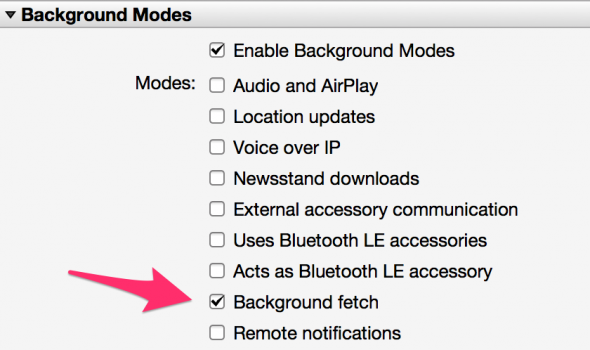
The first step is to enable the Background Fetch entitlement in your Info.plist file. It’s basically the same as you’d do with a native iOS app, except you probably won’t be editing the file in Xcode. There are two easy ways to update this file:
  • Use Xamarin Studio’s plist editor:plist
  • Just add the following key to the file:
    XML
    <key>UIBackgroundModes</key>
    <array>
      <string>fetch</string>
    </array>
    
Either way, this tells iOS you plan to use Background Fetch.

2. Specify how frequently you’d like to fetch.

Once you have enabled the Background Fetch entitlement, you need to set the desired fetch interval with the SetMinimumBackgroundFetchInterval method. You have some choices here.
  • The default interval is BackgroundFetchIntervalNever, which basically means that Background Fetch is disabled by default.
  • You can use BackgroundFetchIntervalMinimum if you want to let iOS determine when your app is woken up.
  • You can specify a desired interval, which means that iOS will wait at least the desired amount of time before waking up your app.
The most common place to put the call to SetMinimumBackgroundFetchInterval is in your FinishedLaunching delegate method, such as below:
C#
using Foundation;
using UIKit;

public override bool FinishedLaunching(UIApplication app, NSDictionary options)
{
  UIApplication.SharedApplication.SetMinimumBackgroundFetchInterval(UIApplication.BackgroundFetchIntervalMinimum);

  // More startup code here
}

3. Implement the fetch handler.

The final step is to implement the PerformFetch delegate method in your AppDelegate declaration. This is the method iOS will invoke to help your app update its content and UI. In this method, you should download any required content, determine if any new content or network errors exist, and call the provided Action<UIBackgroundFetchResult> completionHandler (the completion handler is an Action delegate that is provided as an argument in PerformFetch). This method must finish in 30 seconds, or iOS will likely terminate your app.
Below is a sample implementation of PerformFetch which downloads an image and saves it to the personal directory of the app:
C#
using Foundation;
using UIKit;
using System.IO;
using System.Net.Http;
using System.Threading.Tasks;

public partial class AppDelegate
{
  public override bool FinishedLaunching(UIApplication app, NSDictionary options)
  {
    UIApplication.SharedApplication.SetMinimumBackgroundFetchInterval(UIApplication.BackgroundFetchIntervalMinimum);

    // More startup code here
  }

  public override async void PerformFetch (UIApplication app, Action completionHandler)
  {
    // Download an image and save to disk
    var result = await FetchImage("https://www.xamarin.com/content/images/pages/branding/assets/xamagon.png");

    // Call the completion handler with the proper result
    completionHandler(result);
  }

  public async Task FetchImage (string url)
  {
    using (var httpClient = new HttpClient())
    {
      try {
        var outputFile = Path.Combine(Environment.GetFolderPath(Environment.SpecialFolder.Personal), "xamarin.png");
        var result = await httpClient.GetAsync(request);
        var contentStream = await result.Content.ReadAsStreamAsync(),

        if (contentStream.Length == 0) {
          return UIBackgroundFetchResult.NoData;
        }

        var stream = new FileStream(outputFile, FileMode.Create, FileAccess.Write))

        await contentStream.CopyToAsync(stream);

        return UIBackgroundFetchResult.NewData;
      } catch (Exception e) {
        return UIBackgroundFetchResult.Failed;
      }
    }
  }
}
So there you have it—a basic iOS app that will periodically wake up your app, fetch an image, and save it to disk. The next post in this series will explain how to use the Background Transfer Service to kick off a large download/upload (i.e., a download that might take more than 30 seconds) and update the content once it’s complete.


Complete Guide: Building a Live Cricket Streaming App for 100M Users

Comprehensive guide to building a scalable live cricket streaming platform for 100M users, covering backend infrastructure, streaming techno...